
How to edit and style video captions on Mac
Fix a word, restyle a caption, then apply the style to every caption at once. Fixing words is free; caption styles are a Scenewick Pro feature with a 14-day free trial.
Coming soon to the Mac App Store: get an email the day it’s out, with a 14-day free trial of everything.
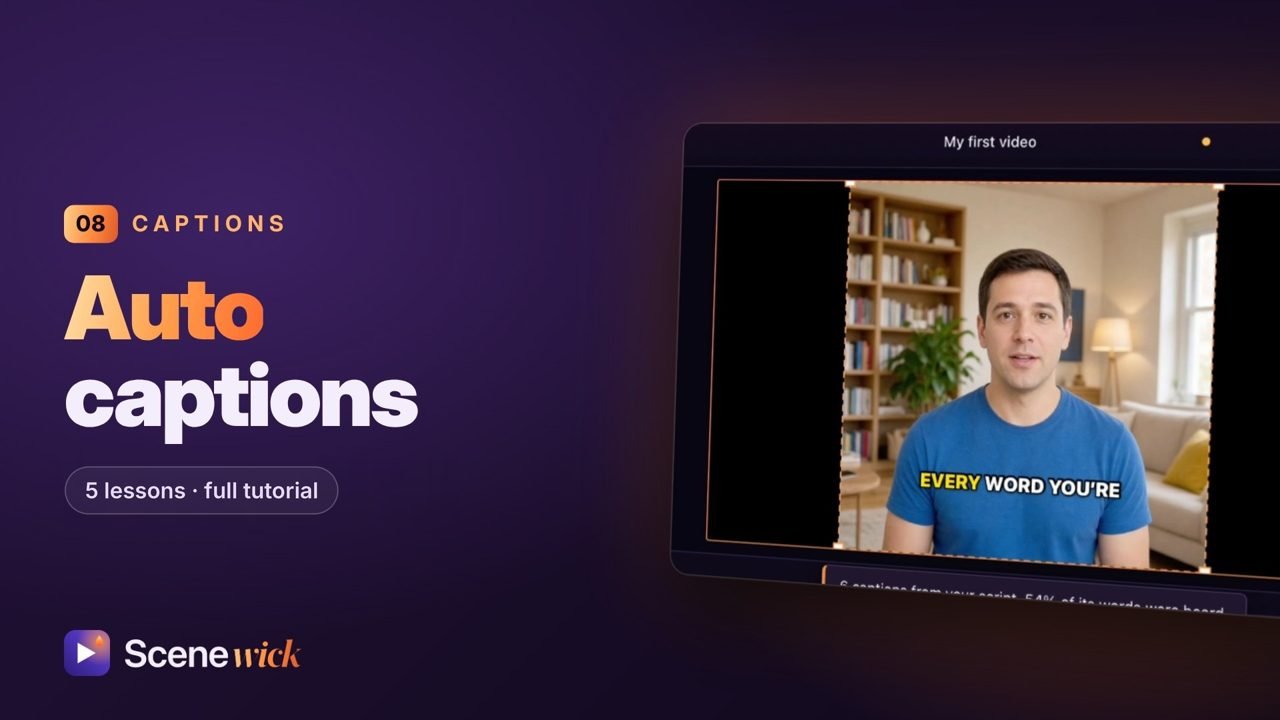
How to do it in Scenewick
- Click a caption on the timeline to select it.
- Edit its text in the inspector. Fixed words keep their timing and new words are fitted in, so word highlighting keeps working.
- Change its style, then click Apply this style to all.
Pro This is a Scenewick Pro feature. Every Pro feature is in the 14-day free trial; after that, Pro is a single purchase with no subscription.
Scenewick is a video editor for Mac: no subscription, no account, and everything runs on your Mac, so your videos never leave it.
Coming soon to the Mac App Store: get an email the day it’s out, with a 14-day free trial of everything.
More in captions
- How to add automatic captions (subtitles) to a video on Mac
- How to make captions from your own script on Mac
- How to add timed captions to a video with no speech on Mac
- How to import and export SRT subtitle files on Mac
Every how-to · All the video lessons. The video is narrated by an AI voice, and the presenter in the demo footage is AI-generated.