
How to put clips on a timeline: a first video edit on Mac
Add clips to the main track, as picture-in-picture, or as sound only. Your first edit in Scenewick, a simple video editor for Mac.
Get Scenewick for Mac
Coming soon to the Mac App Store: get an email the day it’s out, with a 14-day free trial of everything.
How to do it in Scenewick
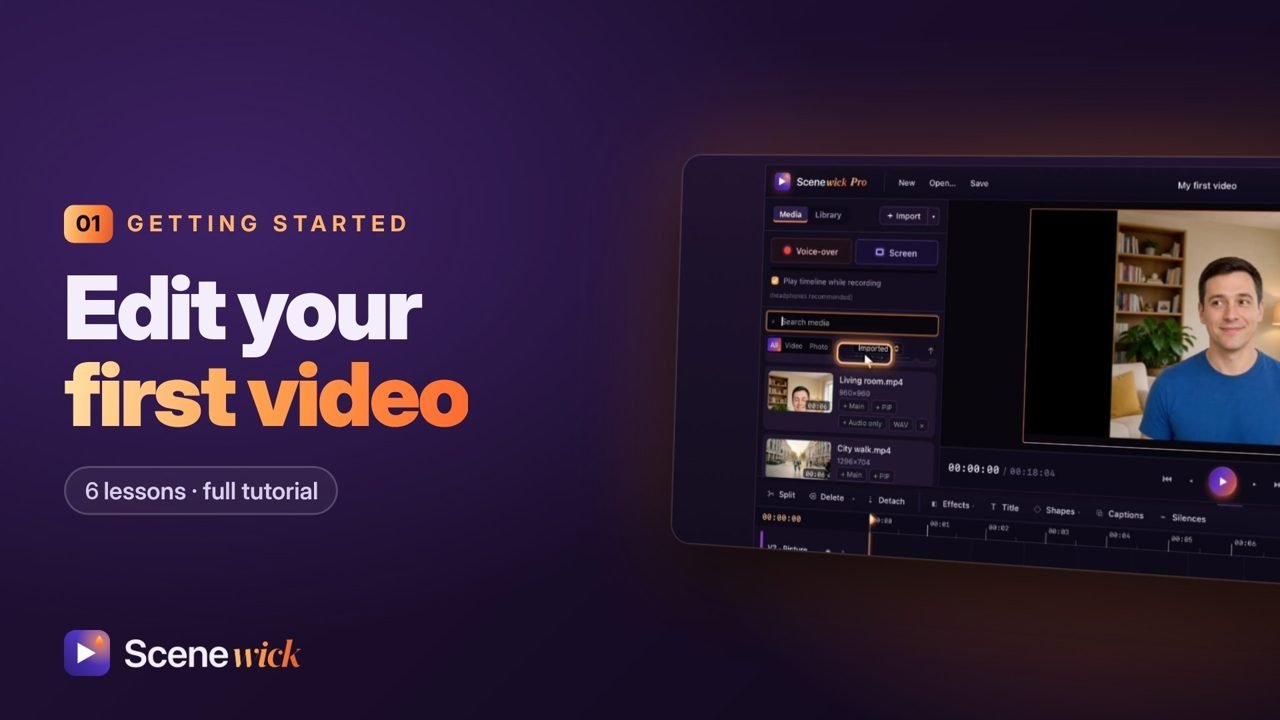
- On a media item, click + Main to add it to the end of the main track.
- Or drag it onto the timeline exactly where you want it, and later clips move along to make room. (For dropping onto the middle of a clip, see Drop a clip into the middle of another.)
- + PiP puts it over the main video at the playhead; + Audio only adds just its sound.
Scenewick is a video editor for Mac: no subscription, no account, and everything runs on your Mac, so your videos never leave it.
Get Scenewick for Mac
Coming soon to the Mac App Store: get an email the day it’s out, with a 14-day free trial of everything.
More in getting started
- How to import videos and photos into a video editor on Mac
- How to find clips fast in a big video project on Mac
- How to save a video project and pick up where you left off on Mac
Every how-to · All the video lessons. The video is narrated by an AI voice, and the presenter in the demo footage is AI-generated.