
How to record your screen with webcam and voice on Mac
Capture your screen with a webcam bubble and your voice, from the microphone you choose, straight into your edit. In Scenewick for Mac.
Get Scenewick for Mac
Coming soon to the Mac App Store: get an email the day it’s out, with a 14-day free trial of everything.
How to do it in Scenewick
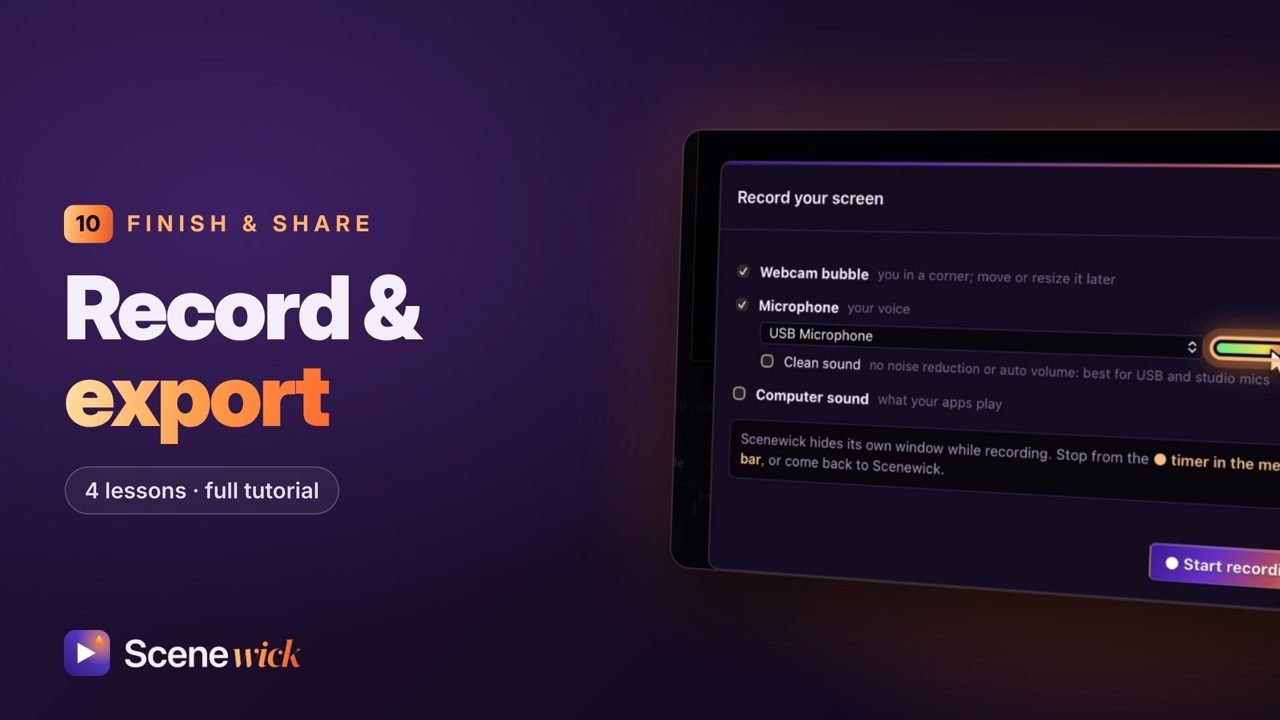
- Click Screen at the top of the media panel, next to Voice-over.
- Choose the screen, and whether to add your webcam, microphone and computer sound.
- Pick your microphone from the list and speak to check the level meter. Tick Clean sound for a USB or studio mic. Voice-over uses the same microphone.
- Click ● Start recording. After a 3-second countdown it records until you click Stop (in the bar at the top, or the timer in the menu bar). The recording lands on your timeline, with the webcam as a round bubble.
Scenewick is a video editor for Mac: no subscription, no account, and everything runs on your Mac, so your videos never leave it.
Get Scenewick for Mac
Coming soon to the Mac App Store: get an email the day it’s out, with a 14-day free trial of everything.
More in record, combine and export
- How to combine two video projects into one on Mac
- How to export a video as MP4 in 4K, vertical and square on Mac
Every how-to · All the video lessons. The video is narrated by an AI voice, and the presenter in the demo footage is AI-generated.