
How to add automatic captions (subtitles) to a video on Mac
Captions made from speech on your Mac, in many languages. Free in a clean style; word-by-word pop styles come with Scenewick Pro.
Get Scenewick for Mac
Coming soon to the Mac App Store: get an email the day it’s out, with a 14-day free trial of everything.
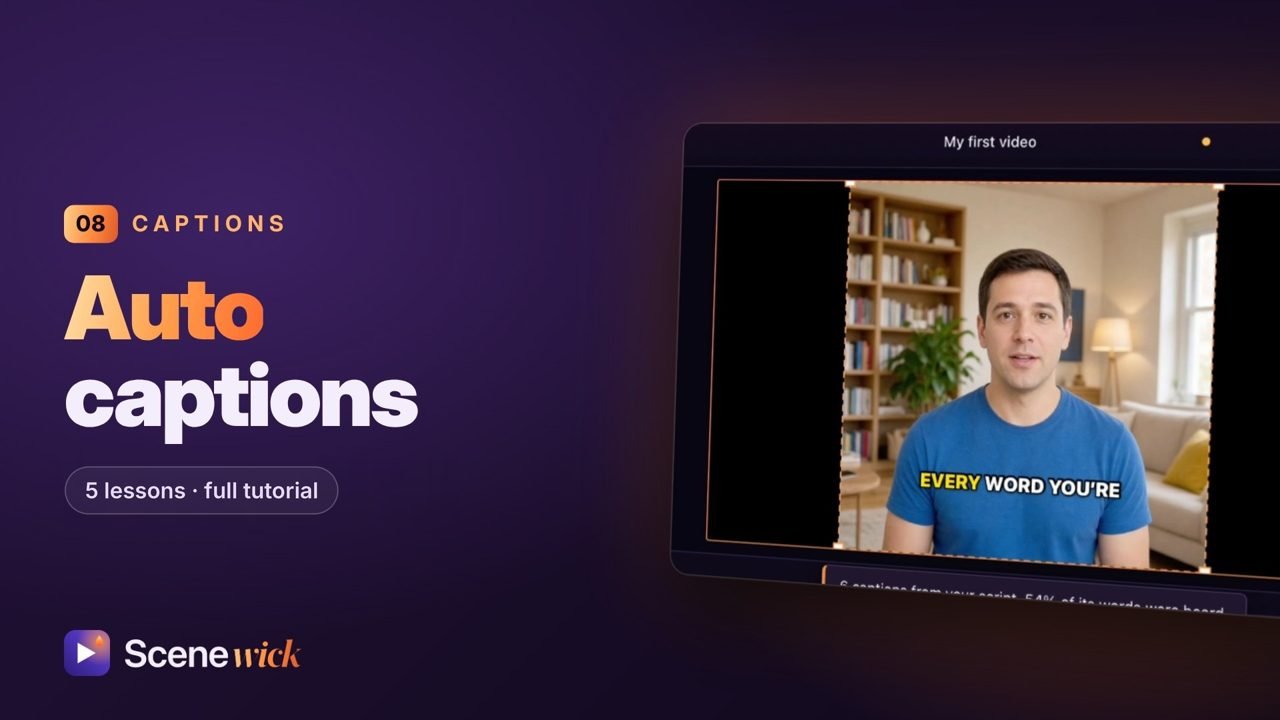
How to do it in Scenewick
- Select the talking clip, or several clips (or nothing, for everything on the Voice track). Captions are made only from the Voice track, never from music. If Scenewick hears music there, it offers to move it to a clean track first.
- Click Captions, choose From speech, the language, a style and caption length. Type any names or brands into Names and words to spell right, and the captions use your spelling.
- Click Generate captions. Each clip is listened to on its own, on your Mac; nothing is uploaded.
- Captions belong to their clip. Move, trim, split or delete the clip and its captions go with it.
Scenewick is a video editor for Mac: no subscription, no account, and everything runs on your Mac, so your videos never leave it.
Get Scenewick for Mac
Coming soon to the Mac App Store: get an email the day it’s out, with a 14-day free trial of everything.
More in captions
- How to make captions from your own script on Mac
- How to add timed captions to a video with no speech on Mac
- How to import and export SRT subtitle files on Mac
- How to edit and style video captions on Mac
Every how-to · All the video lessons. The video is narrated by an AI voice, and the presenter in the demo footage is AI-generated.