
How to add text to a video on Mac
Put a title, subtitle or lower third over your video in a couple of clicks, in Scenewick for Mac.
Get Scenewick for Mac
Coming soon to the Mac App Store: get an email the day it’s out, with a 14-day free trial of everything.
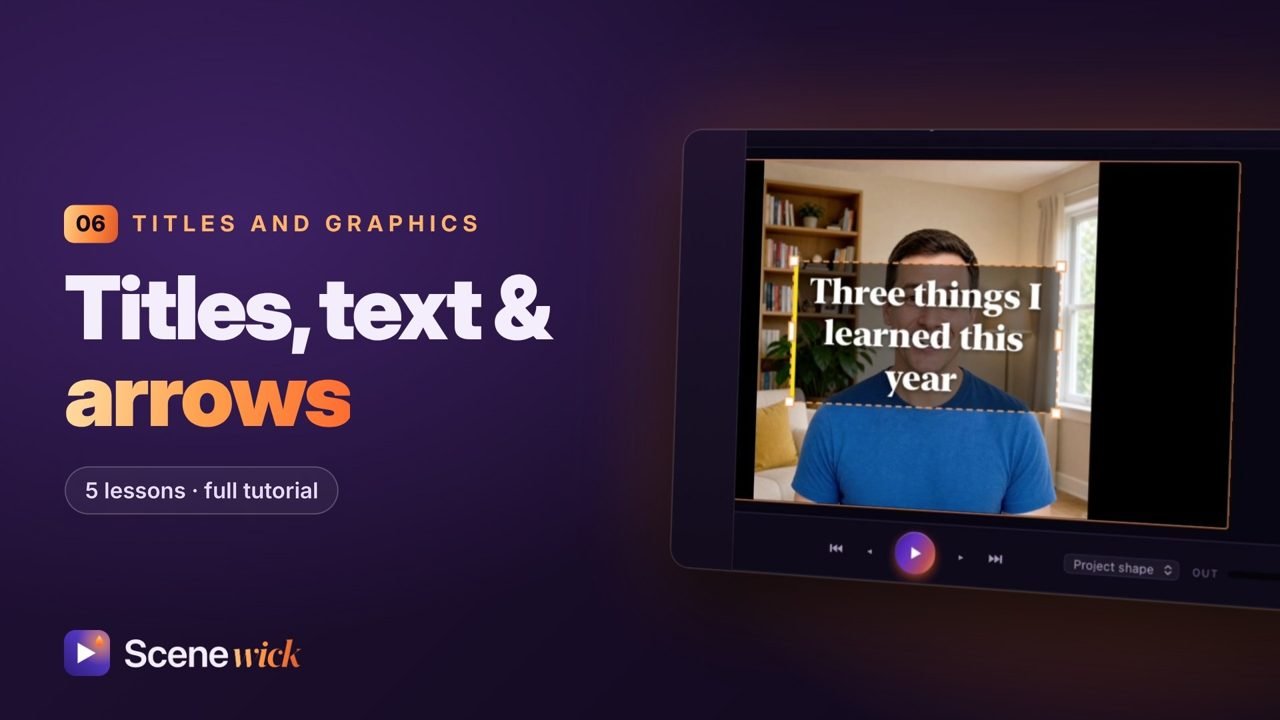
How to do it in Scenewick
- Put the playhead where the title should appear.
- Press T, or click Title above the timeline.
- Type your text in the inspector, and pick a preset: Title, Subtitle or Lower third.
- Drag the title in the viewer to place it, and drag its clip edges on the timeline to set how long it shows.
Scenewick is a video editor for Mac: no subscription, no account, and everything runs on your Mac, so your videos never leave it.
Get Scenewick for Mac
Coming soon to the Mac App Store: get an email the day it’s out, with a 14-day free trial of everything.
More in titles and graphics
- How to change the font, colour and outline of video text on Mac
- How to animate text in a video on Mac
- How to add arrows, circles and highlights to a video on Mac
Every how-to · All the video lessons. The video is narrated by an AI voice, and the presenter in the demo footage is AI-generated.