
How to add tracks, zoom the timeline and snap clips on Mac
Add video and audio tracks, hide or mute them, zoom the timeline and snap clips together in Scenewick for Mac.
Get Scenewick for Mac
Coming soon to the Mac App Store: get an email the day it’s out, with a 14-day free trial of everything.
How to do it in Scenewick
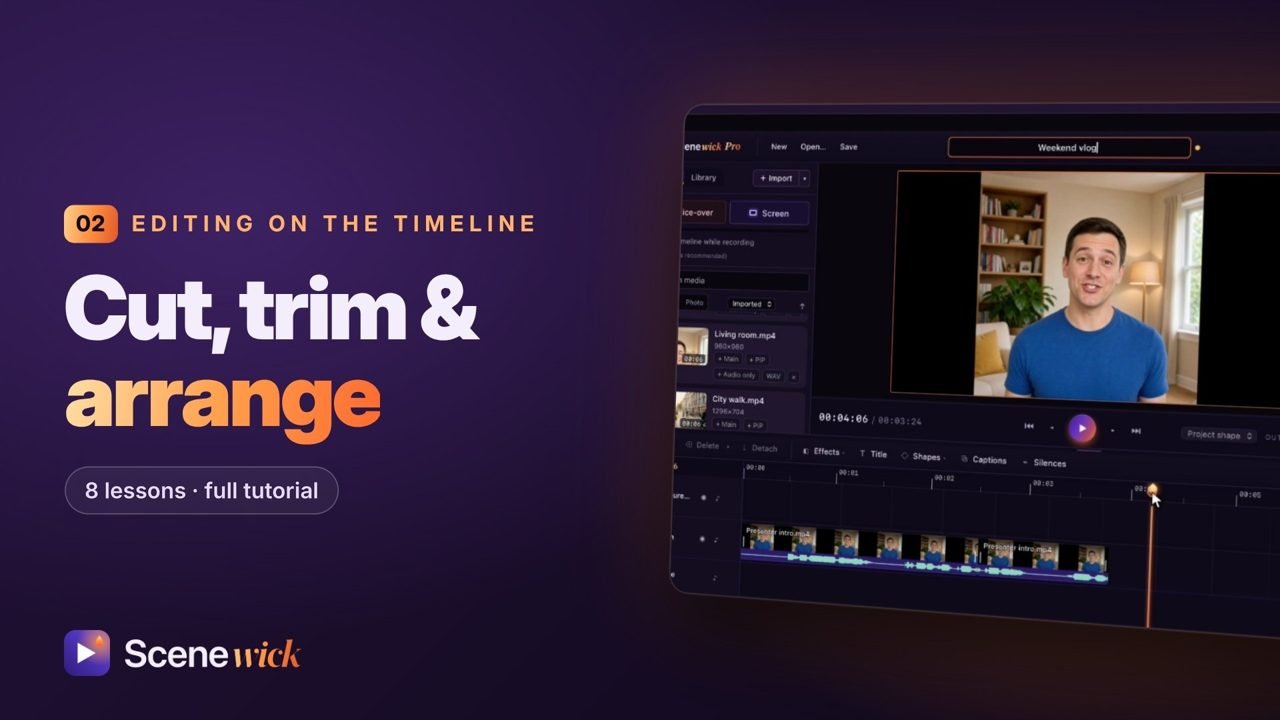
- Use + Track to add a video (picture-in-picture) or audio track.
- Each track’s header has buttons to mute or remove it; video tracks can be hidden too.
- Zoom with the slider, the + and − keys, or pinch; Fit shows the whole edit.
Scenewick is a video editor for Mac: no subscription, no account, and everything runs on your Mac, so your videos never leave it.
Get Scenewick for Mac
Coming soon to the Mac App Store: get an email the day it’s out, with a 14-day free trial of everything.
More in editing on the timeline
- How to split a video clip in two on Mac
- How to trim the start and end of a video on Mac
- How to rearrange video clips on a timeline on Mac
- How to insert a clip into the middle of another clip on Mac
- How to delete part of a video without leaving gaps on Mac
Every how-to · All the video lessons. The video is narrated by an AI voice, and the presenter in the demo footage is AI-generated.