
How to import videos and photos into a video editor on Mac
Bring videos, photos and audio from Finder or the Photos app into Scenewick, a video editor for Mac, by dragging them in or using Import.
Get Scenewick for Mac
Coming soon to the Mac App Store: get an email the day it’s out, with a 14-day free trial of everything.
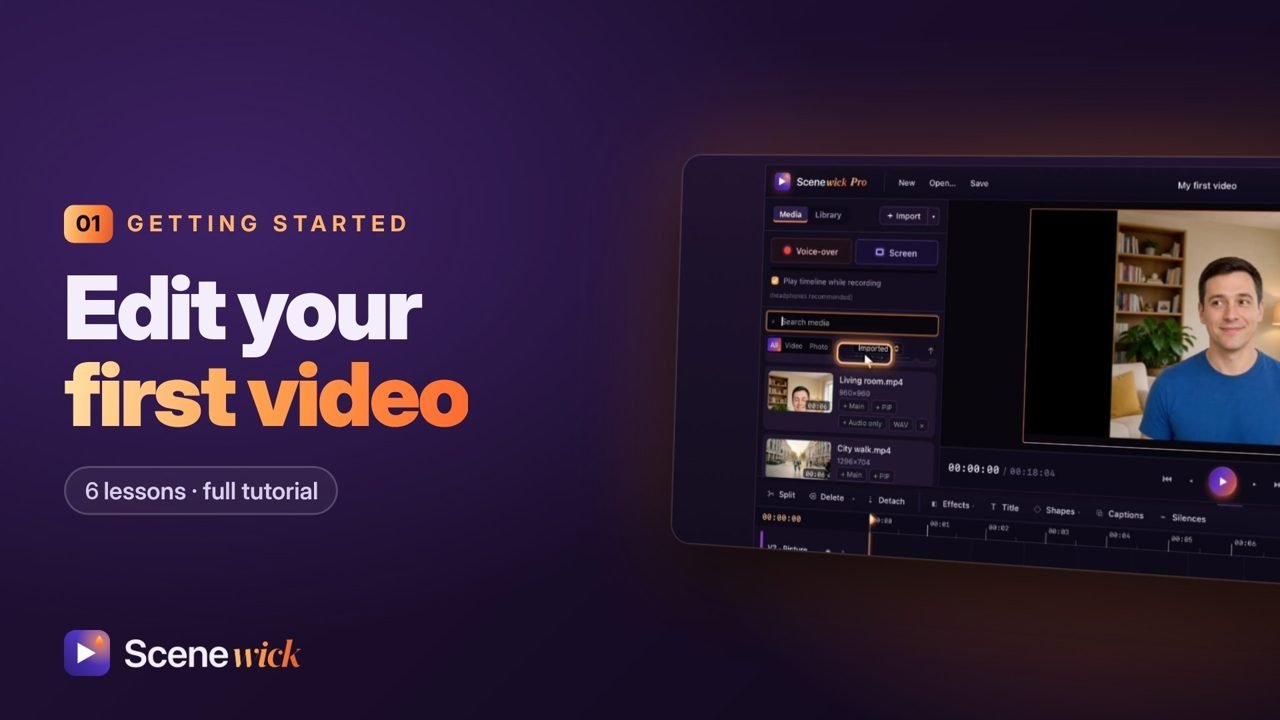
How to do it in Scenewick
- Click + Import above the media list and choose your files, or drag them in from Finder.
- Drag straight from the Photos app too. Scenewick fetches the original file in the background.
- Your first video goes onto the timeline for you, ready to edit.
Scenewick is a video editor for Mac: no subscription, no account, and everything runs on your Mac, so your videos never leave it.
Get Scenewick for Mac
Coming soon to the Mac App Store: get an email the day it’s out, with a 14-day free trial of everything.
More in getting started
- How to find clips fast in a big video project on Mac
- How to put clips on a timeline: a first video edit on Mac
- How to save a video project and pick up where you left off on Mac
Every how-to · All the video lessons. The video is narrated by an AI voice, and the presenter in the demo footage is AI-generated.