
How to insert a clip into the middle of another clip on Mac
Drop a shot onto a clip to put it next to it, split the clip and insert it in the middle, or cover the picture while the sound plays on. In Scenewick for Mac.
Get Scenewick for Mac
Coming soon to the Mac App Store: get an email the day it’s out, with a 14-day free trial of everything.
How to do it in Scenewick
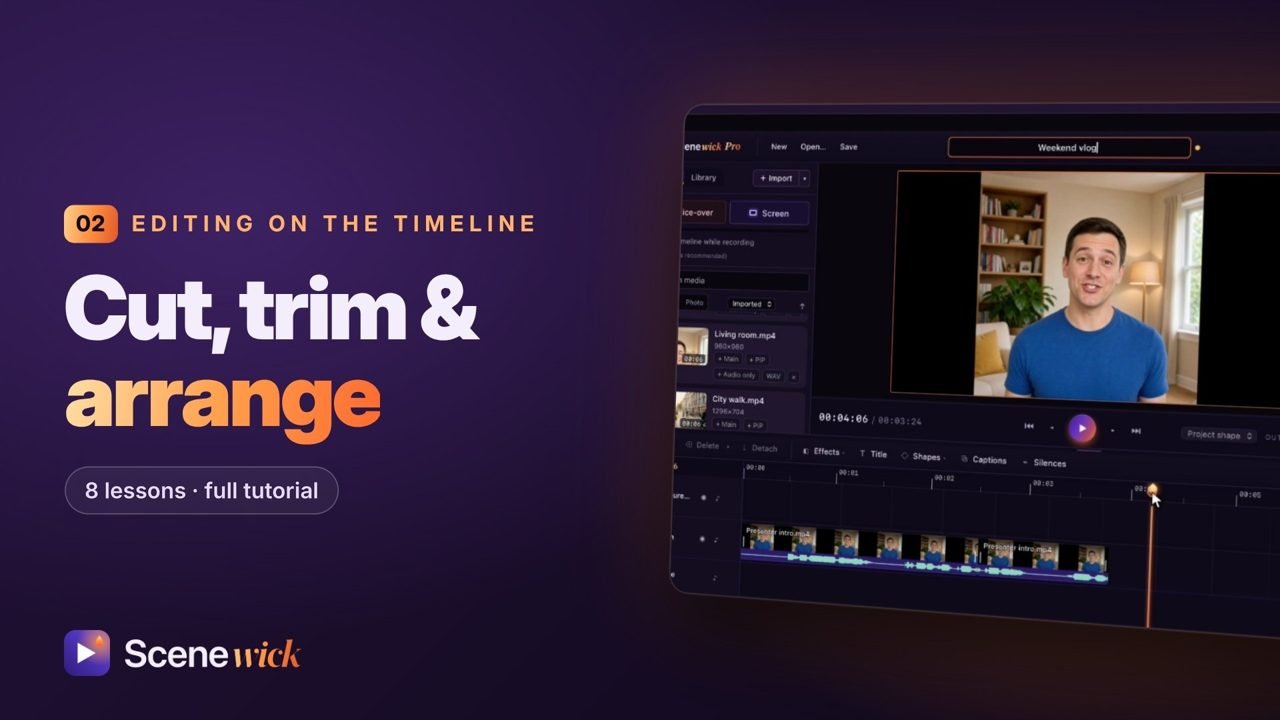
- Drag a shot from your media onto a clip on the timeline. The line shows where it will land, and the note says what will happen.
- Dropped as it is, it goes in at the nearer end of that clip, and everything after it moves along.
- Hold ⌘ as you drop to split the clip at that point and put the new shot in the middle; the rest of the clip carries on after it.
- Hold ⌥ as you drop to cover the picture there instead. The sound underneath plays on and nothing moves.
Scenewick is a video editor for Mac: no subscription, no account, and everything runs on your Mac, so your videos never leave it.
Get Scenewick for Mac
Coming soon to the Mac App Store: get an email the day it’s out, with a 14-day free trial of everything.
More in editing on the timeline
- How to split a video clip in two on Mac
- How to trim the start and end of a video on Mac
- How to rearrange video clips on a timeline on Mac
- How to delete part of a video without leaving gaps on Mac
- How to close empty gaps between clips in a video on Mac
Every how-to · All the video lessons. The video is narrated by an AI voice, and the presenter in the demo footage is AI-generated.