
How to trim the start and end of a video on Mac
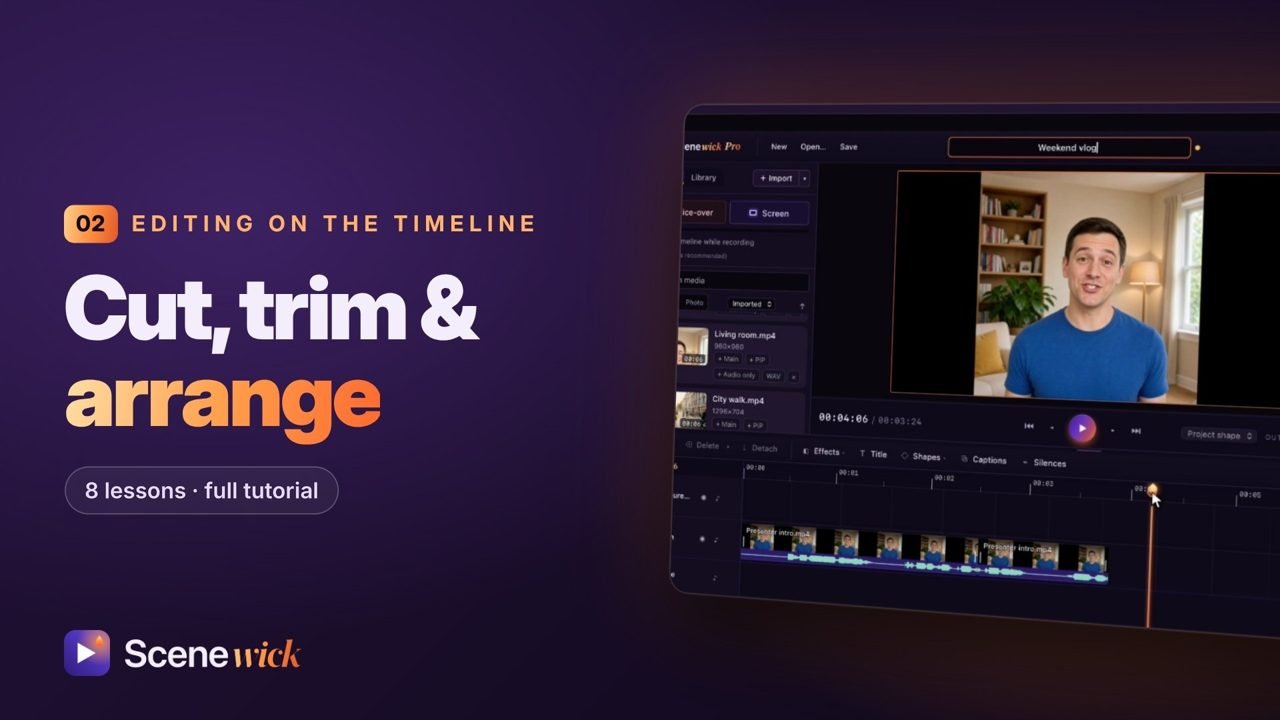
Drag a clip's edges to cut off the parts you don't want. Trimming video in Scenewick for Mac.
Get Scenewick for Mac
Coming soon to the Mac App Store: get an email the day it’s out, with a 14-day free trial of everything.
How to do it in Scenewick
- Hover the start or end of a clip on the timeline.
- Drag the edge inwards to shorten it, or back out to bring the footage back.
- Trimming leaves a gap. Close it with ⌥⌫, or Delete ▾ › Close gap at playhead.
Scenewick is a video editor for Mac: no subscription, no account, and everything runs on your Mac, so your videos never leave it.
Get Scenewick for Mac
Coming soon to the Mac App Store: get an email the day it’s out, with a 14-day free trial of everything.
More in editing on the timeline
- How to split a video clip in two on Mac
- How to rearrange video clips on a timeline on Mac
- How to insert a clip into the middle of another clip on Mac
- How to delete part of a video without leaving gaps on Mac
- How to close empty gaps between clips in a video on Mac
Every how-to · All the video lessons. The video is narrated by an AI voice, and the presenter in the demo footage is AI-generated.