
How to undo, copy and paste clips in a video editor on Mac
Step back through changes, and copy and paste clips, in Scenewick for Mac.
Get Scenewick for Mac
Coming soon to the Mac App Store: get an email the day it’s out, with a 14-day free trial of everything.
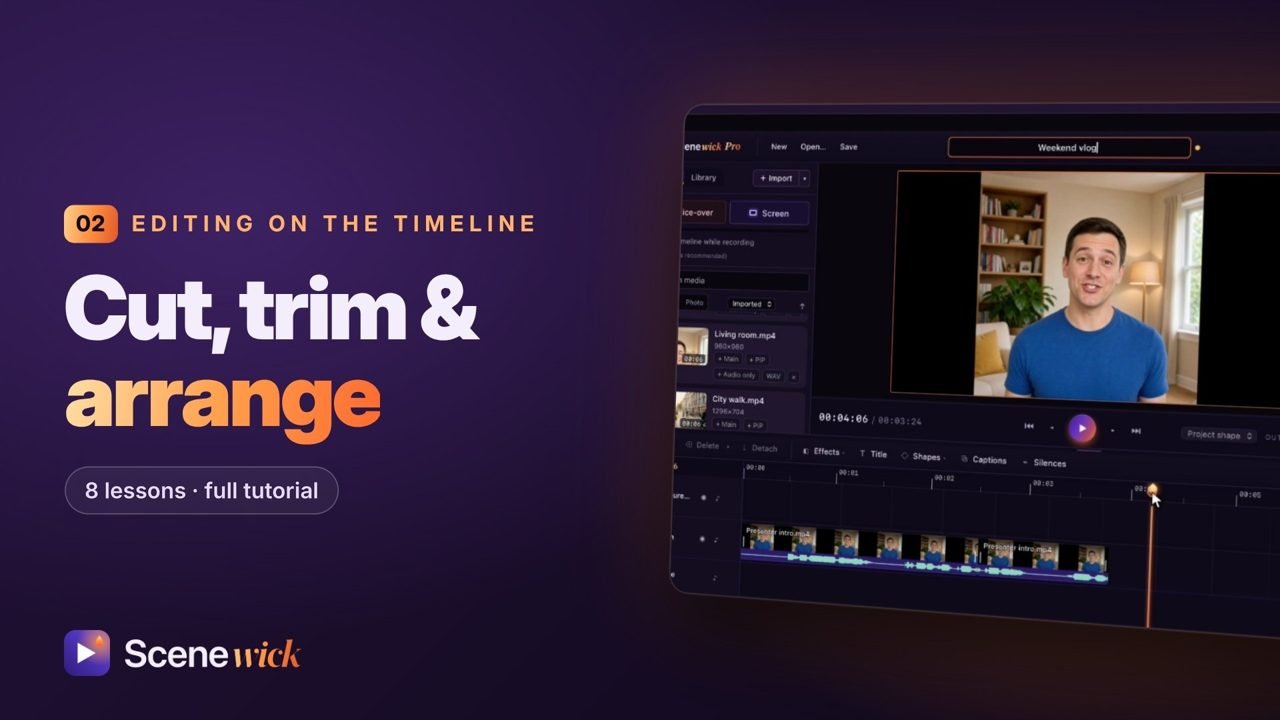
How to do it in Scenewick
- ⌘Z undoes, ⇧⌘Z redoes, as many steps as you like (also the arrows at the top).
- Select clips and press ⌘C to copy, ⌘X to cut.
- Move the playhead and press ⌘V to paste. On the main track it’s inserted there.
Scenewick is a video editor for Mac: no subscription, no account, and everything runs on your Mac, so your videos never leave it.
Get Scenewick for Mac
Coming soon to the Mac App Store: get an email the day it’s out, with a 14-day free trial of everything.
More in editing on the timeline
- How to split a video clip in two on Mac
- How to trim the start and end of a video on Mac
- How to rearrange video clips on a timeline on Mac
- How to insert a clip into the middle of another clip on Mac
- How to delete part of a video without leaving gaps on Mac
Every how-to · All the video lessons. The video is narrated by an AI voice, and the presenter in the demo footage is AI-generated.